HUELLOWEEN
INTRO
Hue Halloween is a Sound and Light Effects Board which works with your Philips Hue Connected Lights. Halloween Sound effects in sync with Halloween Hue Light FX. Darken your room, connect the audio to your speakers! And get ready for a good scare! Use it at your front door to scare everybody while trick-or-treating. Use it during your halloween dinner to set the right spooky mood. Hue Halloween now supports the Philips Hue Motion Sensor!
Let’s go over the controls and learn how to use them.
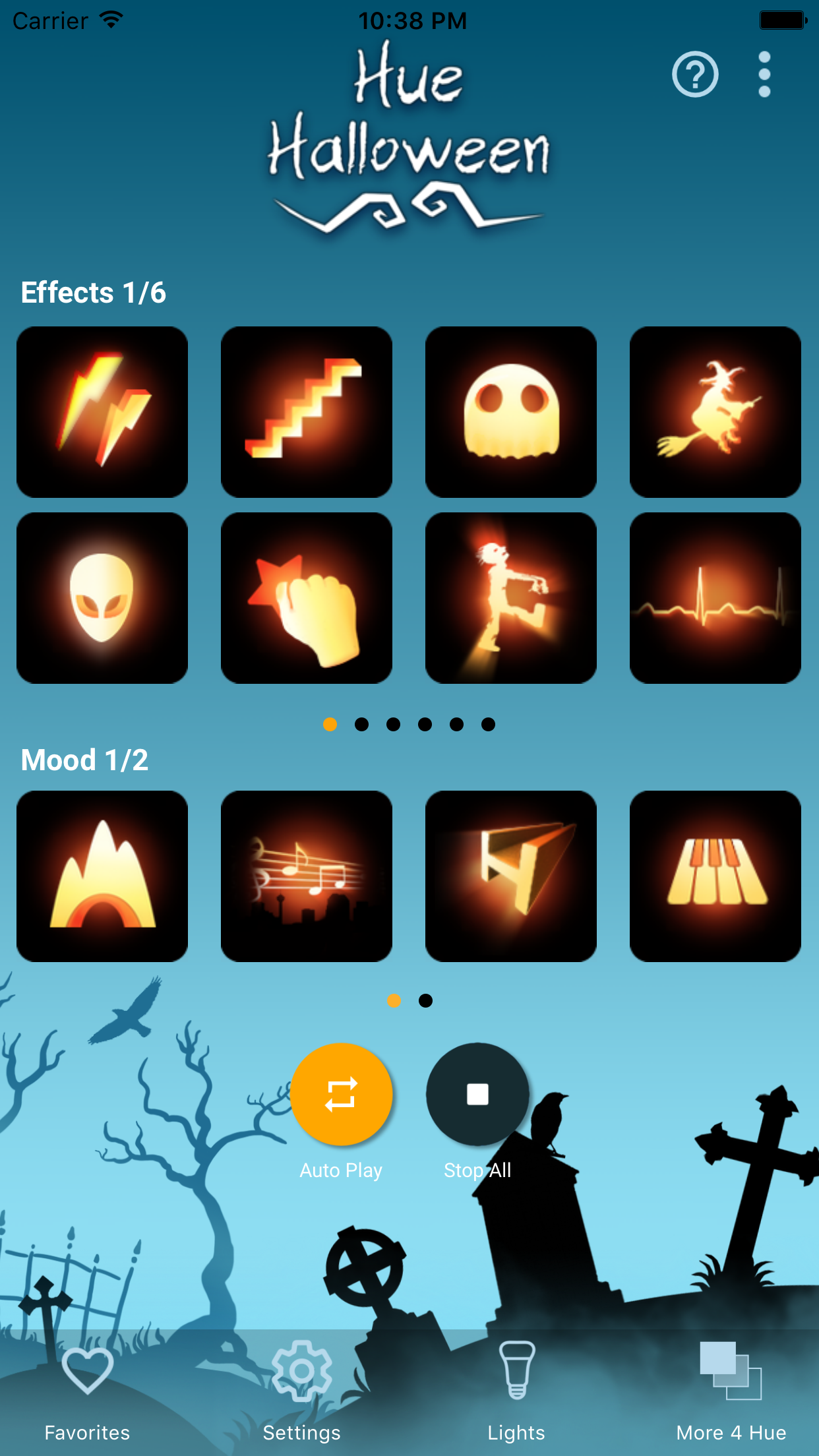
This is the first screen of Huelloween.
EFFECTS
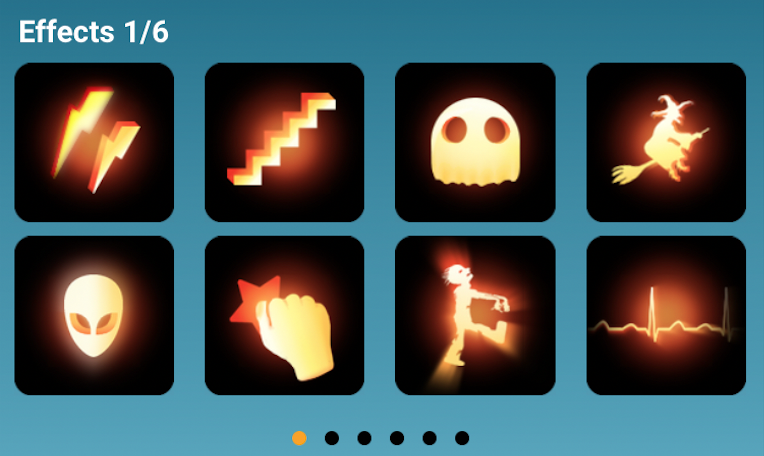
Play an effect by tapping one of the buttons and see what happens (make sure you have some bulbs selected in the Lights tab). Scary sound effects with synced light effects will show. Don’t forget to swipe to the left. There is a total of 48 effects. (24 are an optional purchase)
MOOD
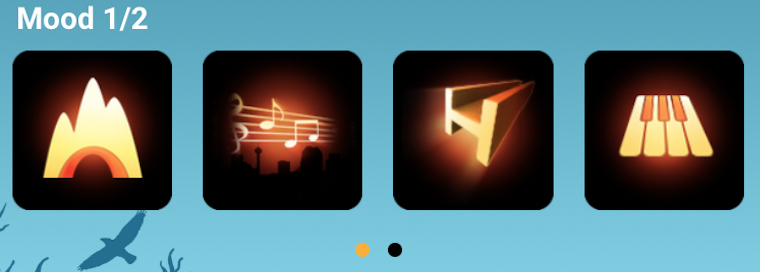
While playing effects or just by itself choose one of the moods. These are eerie longer sound effects, also with synced light effects but less wild and more suitable for playing all night.
AUTO-PLAY / STOP ALL
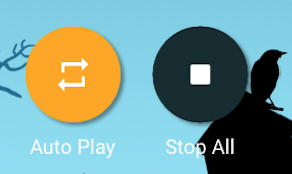
- Use auto-play to play effects automatically. This function will play your selected favorite effects and moods (can be selected in the Favorites tab) for continuous scare.
- Tap the stop button to stop all playing effects. Auto-play, mood and/or effects will stop playing.
MENU

Next to the help / manual button which brought you here, there is an option menu. Tap this menu for some quick / extra options.
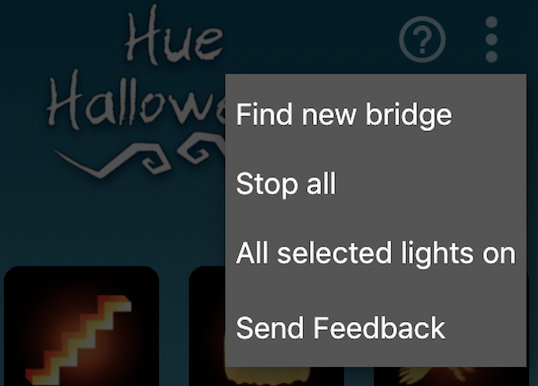
- Find new bridge: This will start the find new bridge flow to find a new or switch to another bridge.
- Stop all: Tap ‘stop all’ to stop all effects playing. Mood, effects and auto play will stop.
- All selected lights on: finished using Huelloween and all is dark. Quickly put all lights (selected) on.
- Send feedback: have a problem of feature request? Please use this method of contacting us!
TAB BAR ITEMS

FAVORITES
The first item on the tab bar is favorites. In favorites you can choose the effects and mood you like to play with Auto-Play.

Choose your favorites by tapping on the hearts. (orange is selected, white outline is not). The play button on the right gives a preview of the soundeffect (no lights). Don’t forget to include/exclude the moods you like. They are on the bottom of the list.
Use the select all / select none buttons as needed.
SETTINGS
The second item on the tab bar is settings. Here you customize the behaviour of Huelloween and configure your Philips motion sensors.
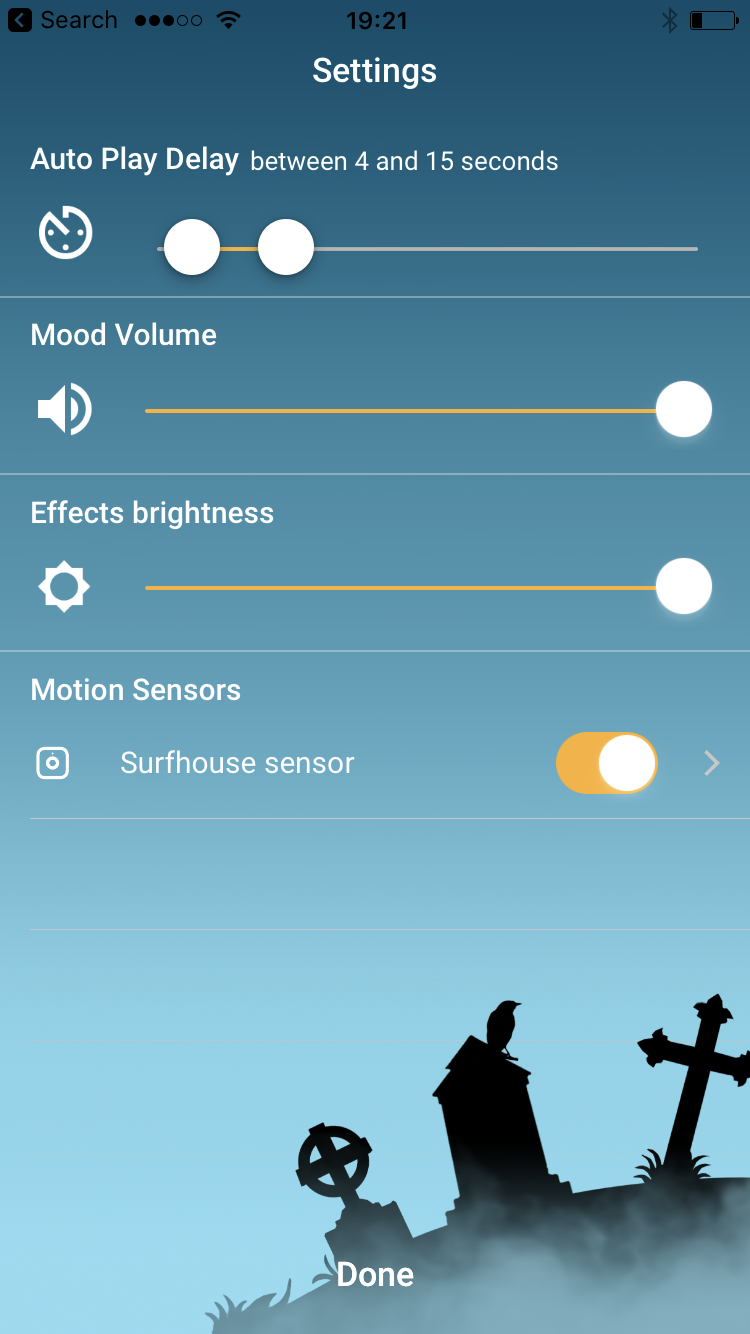
- Auto Play delay: Set a time range for Auto-Play. When started this will randomly choose a delay between the effects (favorites) within this range.
- Mood volume: adjust the volume of the mood sounds
- Effects brightness: Adjust the brightness of all moods and effects. Controls how bright your bulbs will be at their maximum level..
- Motion sensors: a list of your available sensors. Press the arrow on the right of the motion sensor to set the action you want to be triggered when (no) motion is detected. Set the switch to on/off.
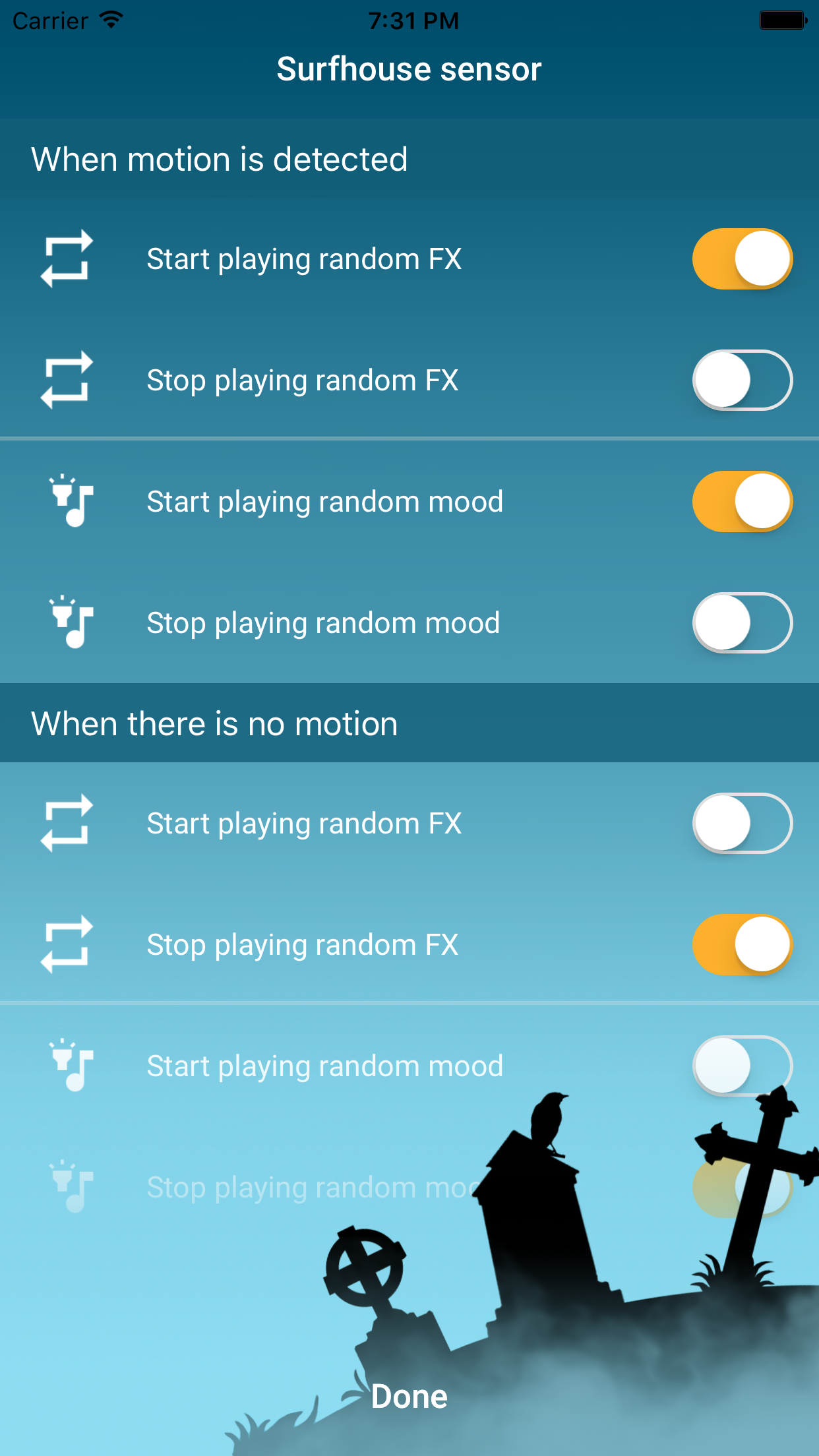
There are four different settings you can choose when (no) motion is detected.
- Start auto play: whenever (no) motion is detected auto play will start playing all effects chosen in favorites.
- Stop auto play: whenever (no) motion is detected auto play will stop.
- Start random mood: whenever (no) motion is detected random mood starts. Only the moods chosen in favorites
- Stop random mood: whenever (no) motion is detected random mood stops.
You can choose several options. An example: When motion is detected random mood will start and so will auto play. And after a while when there is no motion detected, auto play will stop. Mood will continue.
Note! Not every combination can be made. When motion is detected it will be impossible to start and stop the same command at the same time. The switches will change when a conflicting choice has been made.
LIGHTS
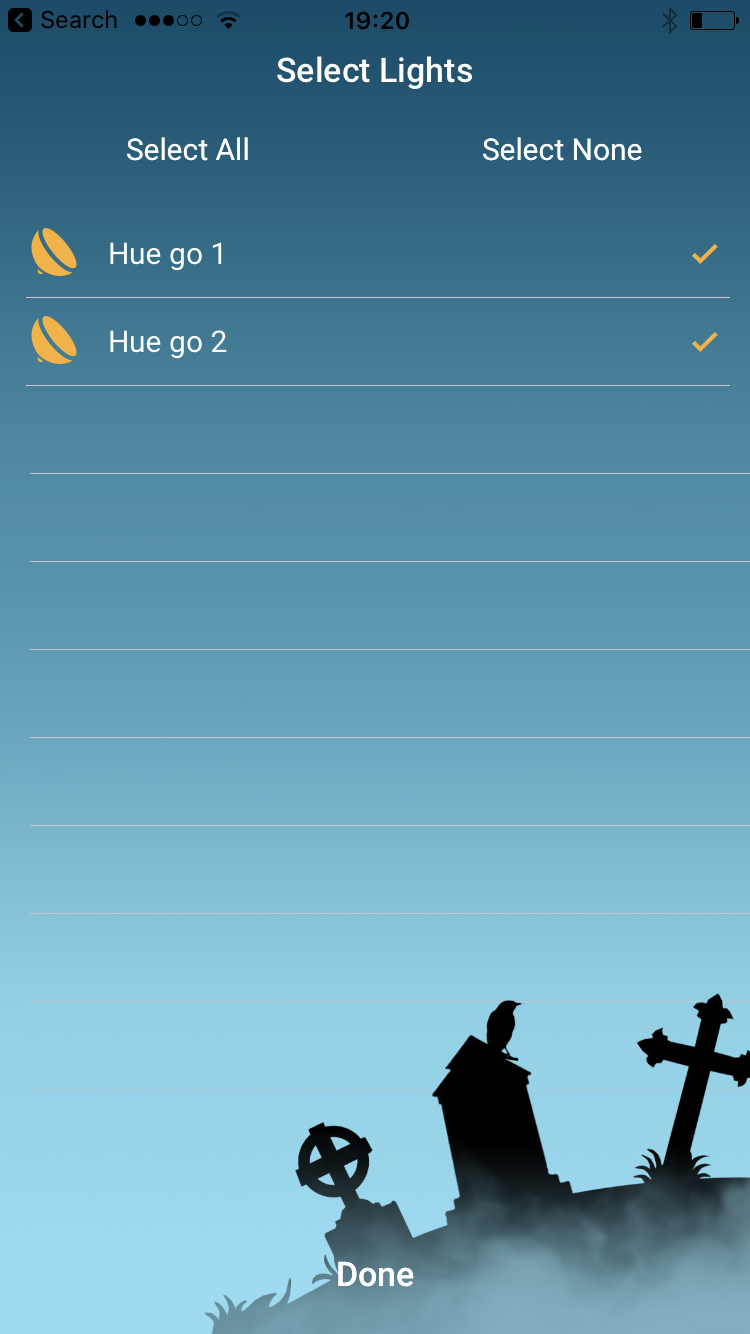
The Light screen shows all your lights registered in your Hue Bridge. Select them by tapping their names or the switch. Selected active lights can be identified by tapping the name of the light and the actual light will blink when selected to help identify it. Lights selected here will be used to scare out people. The ones not selected will not be touched by Huelloween (also not turned off). Use the select all / select none buttons as needed.
MORE 4 HUE
Our other apps for Philips Hue, check them out! They are fun.